
Nova for Mac and Windows.
Nova watches how you work, on your computer, then shows you what could run on its own.
Nova for desktop installs on a Mac or a PC.
Email me the link- Version
- 0.2.0beta
- Mac
- macOS 13 or later, Apple or Intel chip
- Windows
- Windows 10 or 11, 64-bit
A beta version: what it changes for you.
- Nova for desktop is brand new. Apple and Microsoft don’t know its publisher yet.
- So the first time you open it, your computer asks you to confirm.
- That warning says the publisher isn’t registered with them yet. It says nothing about what the app does.
- That means a few extra clicks, once per version. The guide shows you each one.
Install Nova, step by step.
One action per step, with a picture of what you’ll see. Once per version.
- 1
Download Nova
Click “Download for Mac.” The file Nova‑0.2.0‑mac.dmg goes to your Downloads folder.
The button is right here: Download for MacDoesn’t look like this?
- Your browser asks whether to allow the download
- Allow it. Some browsers ask the first time a site saves a file.
- The download takes a while
- The file is large. Leave this page open until it finishes.
Illustration - 2
Open the file, then drag Nova into Applications
Double-click the file you just downloaded. A small window opens: drag the Nova icon onto the Applications folder.
Doesn’t look like this?
- No window opens
- The file is in your Downloads folder: open the Finder (the blue face icon at the bottom of the screen), then Downloads, and double-click it there.
- Your Mac says Nova is already in Applications
- You had an earlier version. Choose to replace it.
Illustration - 3
Open Nova, then click “Done”
In your Applications folder, double-click Nova. Your Mac shows a message. Click “Done.” Not “Move to Trash.”
This is expected. Nova hasn’t gone through Apple’s paid verification yet. The message says nothing about what the app does.
Doesn’t look like this?
- Where is the Applications folder?
- In the Finder, open the Go menu at the top of the screen, then choose Applications.
- The message is worded differently
- The exact wording varies with your system version. Close the message without moving Nova to the Trash, then keep going.
- You clicked “Move to Trash”
- Nothing is broken. Go back one step and drag Nova into Applications again.
Illustration - 4
Open System Settings
Click the Apple logo in the top-left corner of your screen, then “System Settings.”
Doesn’t look like this?
- You can’t see the Apple logo
- It sits in the bar at the very top of the screen. If an app fills the whole screen, move your pointer to the top edge: the bar appears.
- Another way in
- System Settings also has its own icon, a gray gear, in the row of apps at the bottom of the screen.
Illustration - 5
Go to “Privacy & Security”
In the left column, click “Privacy & Security.” Then scroll all the way down on the right.
Doesn’t look like this?
- You can’t find it
- Use the search field at the top of the left column, and type “Privacy.”
Illustration - 6
Click “Open Anyway”
At the very bottom, under “Security,” a line says Nova was blocked. Click “Open Anyway.”
This button only appears after you’ve tried to open Nova (step 3). It goes away after a while.Doesn’t look like this?
- The button isn’t there
- Open Nova again from your Applications folder. The message comes back: click “Done,” then return here.
Illustration - 7
Confirm one last time
Your Mac asks again. Click “Open Anyway,” then enter your Mac password or use Touch ID.
Doesn’t look like this?
- The button says “Open”
- On some versions it does. It’s the same button.
- Which password?
- The one you type to unlock this Mac. Not your Nova password.
Illustration - 8
Nova opens
Click “Start.” You won’t have to do any of this again for this version.
Doesn’t look like this?
- Nothing opens
- Look at the bar at the very top of the screen, on the right: the Nova icon is there. Click it.
- Still nothing
- Email us at hello@novaforwork.com and tell us which step you’re stuck on.
Illustration

On an older Mac On macOS 14 or earlier: right-click Nova, choose “Open,” then “Open” again.
Nothing happens? Email us and tell us which step you’re stuck on: hello@novaforwork.com
These images are illustrations, not screenshots. The exact wording varies a little with your system version.
Once Nova is open: three clicks, and your week.
- 1
Click “Start”Nova opens paused. It only starts when you tell it to.
- 2
Work as usualLeave Nova open while you work. Pause it anytime.
- 3
Click “Send to Nova”You review everything first. Then your week shows up in “Automate.”
The app, the extension, your phone: which does what.
Nova for desktopThis page
It watches how you work, on your Mac or your PC, and tells you what to automate. You download it and install it.
The Nova extension
Your guide, inside your assistants: it shows you where to click and what to write, right in ChatGPT, Claude, Gemini… It lives in your browser, on a computer.
See the extensionNova on your phone
The Nova you know, with its icon on your home screen. Nothing to download: you add it from your phone’s browser.
See how to add it
In Nova, you stay in control.
Nova opens paused. Nothing starts until you click “Start.”
- Pause anytime.
- Read everything before you send it.
- Delete anytime.
On Mac
Two permissions Nova may ask for. Each one is optional.
- Accessibility OptionalTo recognize your tools in the browser. Without it, the browser counts as a single app.
- Screen Recording OptionalOnly if you turn on “Read the screen on the spot,” which is off by default.
On Windows
No permissions needed.
What Nova reads, and what it doesn’t.
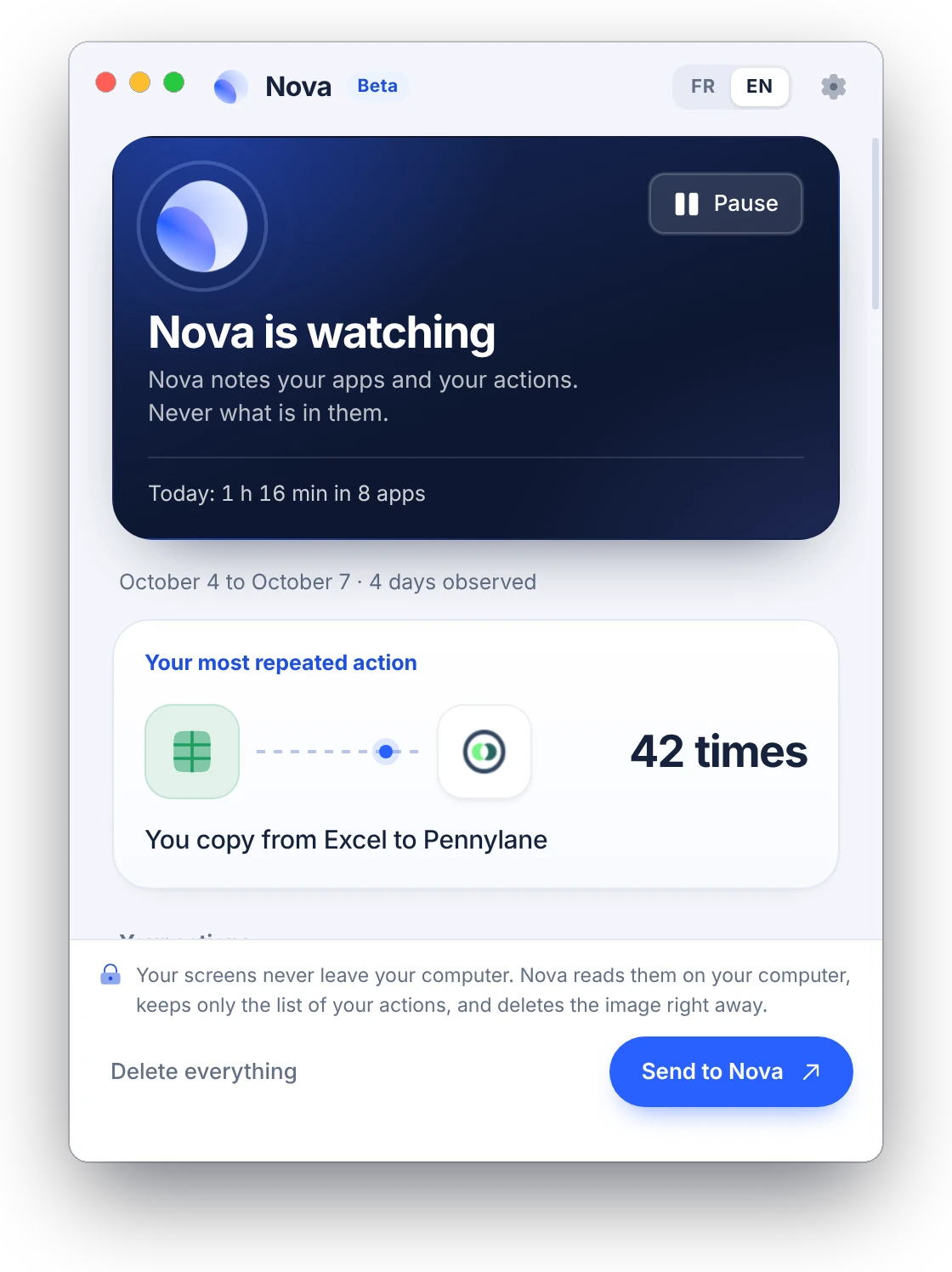
Your screens never leave your computer. Nova reads them on your computer, keeps only the list of your actions, and deletes the image right away.
What Nova reads
- The name of the app in front of you, if it is on its list.
- How long the mouse and keyboard have been still, so a break isn’t counted.
- Whether the clipboard changed. Not what is in it.
- The name of your browser tab, if you leave that setting on: Nova looks for a tool on its list, then forgets it.
- The screen, only if you turn on “Read the screen on the spot”: Nova reads the image without saving it, keeps one word from a fixed list (“invoice”), and deletes the image right away.
What Nova never does
- Read what you type. Nothing listens to your keyboard.
- Read what is in your clipboard.
- Write an image to your disk.
- Connect to the internet. Your browser is what opens, when you ask.
- Look at your bank, your password managers, your personal messaging apps, your health apps, or a private window that your browser labels as private.
What leaves your computer: a log of app names, actions, and numbers, which you read in full before sending it.
What this version doesn’t do yet.
- It doesn’t update itself.Come back to this page: it always has the latest version.
- It doesn’t open when your computer starts.You open it, when you want.
- It only recognizes the software on its list: 199 for now.Is one missing? Write to us: hello@novaforwork.com
Remove it, whenever you want.
On Mac
- Quit Nova: click its icon in the menu bar, at the top of the screen, then “Quit Nova.”
- Move Nova to the Trash, from the Applications folder.
- To also delete what it noted: in the Finder, open the Go menu, choose “Go to Folder,” then move this folder to the Trash.
~/Library/Application Support/Nova
On Windows
- Open Settings, then Apps.
- On the Nova line, choose “Uninstall.”
- What Nova noted goes with it.
Your questions, answered plainly.
Why does my computer warn me?
Because Nova for desktop is brand new: Apple and Microsoft don’t know its publisher yet. That is what the warning says, and it says nothing about what the app does. The guide above shows the few extra clicks, once per version.
On a computer managed by your company, your IT team can block apps that Apple and Microsoft don’t know yet. Don’t work around that setting: show them this page. In the meantime, “Automate” can learn your week another way: by telling it yourself, or by showing Nova one task on your screen.
Yes. The app installs and takes notes without an account, but what it noted is read in “Automate,” which requires a Nova account and a subscription (yours, or your team’s).
No. Nothing leaves until you ask to send it: your browser then opens on “Automate,” you read the summary, and you choose whether to keep it.
Download it here and install it like the first time. On a Mac, your computer asks for the confirmation and the permissions again.
Create your workspace. Solo, or as a team.
Nova shows everyone what AI can do in their job, guides them to the result, and keeps them up to date.